
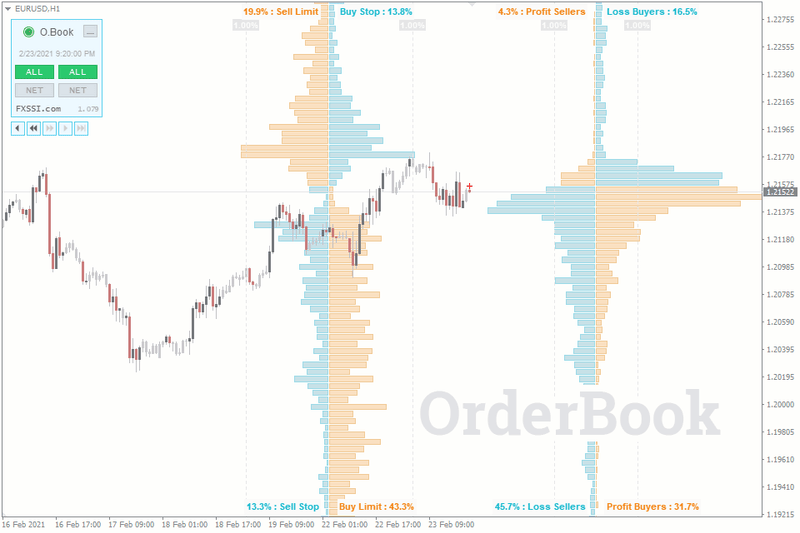
FXSSI.OrderBook Pro MT4 and MT5
One of the most powerful tools for market sentiment analysis, this indicator plots two histograms that represent the Open Orders and Open Positions of market participants.
FXSSI.OrderBook – Overview
Analyze the market sentiment directly in the MT4 and MT5 terminal with the advanced OrderBook indicator.
The indicator will allow you to:
The OrderBook indicator will become an indispensable assistant for any trader who practices trading against the market majority.
Many of our clients find this indicator indispensable, making it a crucial part of their market analysis toolkit.
OrderBook Indicator
The OrderBook indicator displays open trades and pending orders of retail traders as a two-sided histogram. It is used for the comprehensive analysis of market sentiment for a particular financial instrument.
The OrderBook indicator consists of two parts:
The left order book further divide into quarters, each of which displays a specific order type, such as Sell Limit, Buy Stop, Profit Sellers or Loss Buyers, etc.
And the right histogram of OrderBook divides buyers and sellers into those in profit and those in loss.
By analyzing this kind of information and resorting to various patterns of the market crowd behavior, you can make complete trading decisions.
Trading With the OrderBook Indicator
First of all, you should understand that Order Book does not generate clear-cut signals like, for example, some indicators that draw arrows on the chart indicating Buy or Sell recommendations.
When it comes to the Order Book, the market analysis comes down to searching for existing or non-existing abnormal clusters among sellers and buyers.
The basic algorithm for the market analysis using the Order Book is as follows:
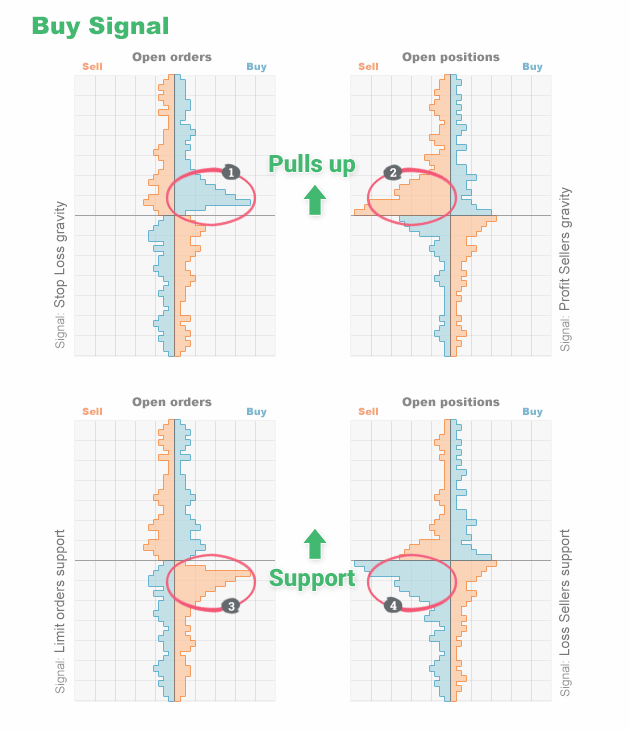
For Buy trades:
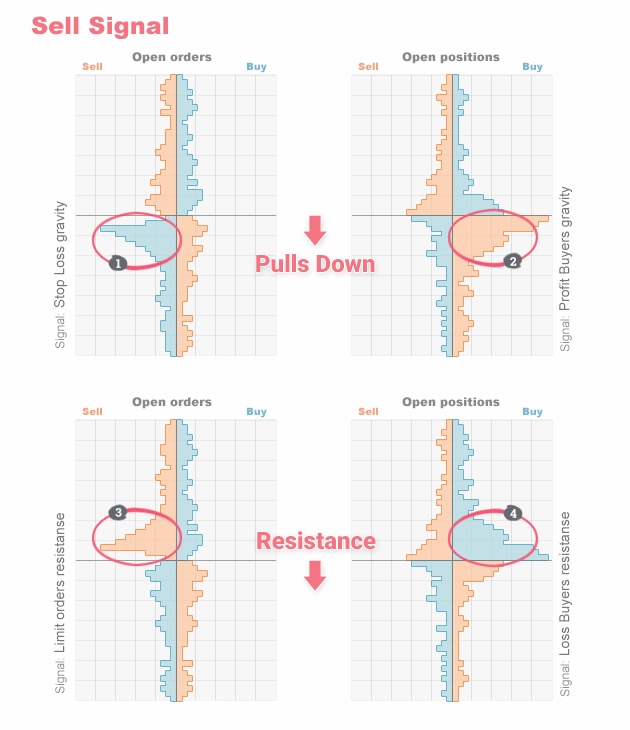
For Sell trades:
However, this doesn’t mean that you should immediately open a Sell trade when you see, for example, a cluster of winning buyers.
We can guarantee that at first, you’ll see things in the market that aren’t really there. With practice, you’ll learn to tell which signals are real and reliable.
Trading with the Order Book needs a bit more detailed analysis for each market situation. You should examine the market to figure out who might be trying to manipulate whom. Once you have an idea, you can then look for a trading opportunity.
If you’re interested in this indicator and you want to know more about it, our complete Order Book guide will help you understand the analysis technique and displayed data interpretation.
What Kind of Data Does the Indicator Show?
OrderBook is the visual representation of trading activity, namely, open trades, pending orders, and Stop orders.
At each price level, the trades are summed up and represented as a histogram. As a result, we get the following picture:
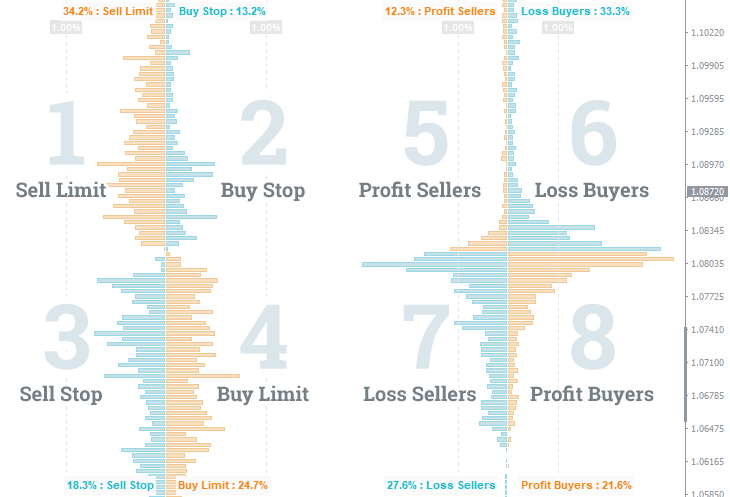
The picture shows the extended order book that includes all types of pending orders as well as open trades.
The original concept of the order book meant that only the first and fourth squares (i.e., only Limit orders) were displayed.
Adding other types of orders and forming a two-sided order book like in our case, was possible thanks to the customer base of a particular broker.
The ordinary stock exchanges cannot provide a two-sided order book since they don’t have the required information.
Indicator Features
The indicator was developed by a team of experienced traders and programmers, so it’s not only a program for data transfer but also a handy and effective tool for analyzing financial markets.
Here are some of the OrderBook indicator features:
Snapshot time. The panel shows the time of the current OrderBook snapshot. It’s actually the time when the data was last updated. If the label is blue, the history navigation mode is enabled.
History navigation. The indicator allows you to navigate the history of snapshots. The maximum history depth depends on the selected subscription plan.
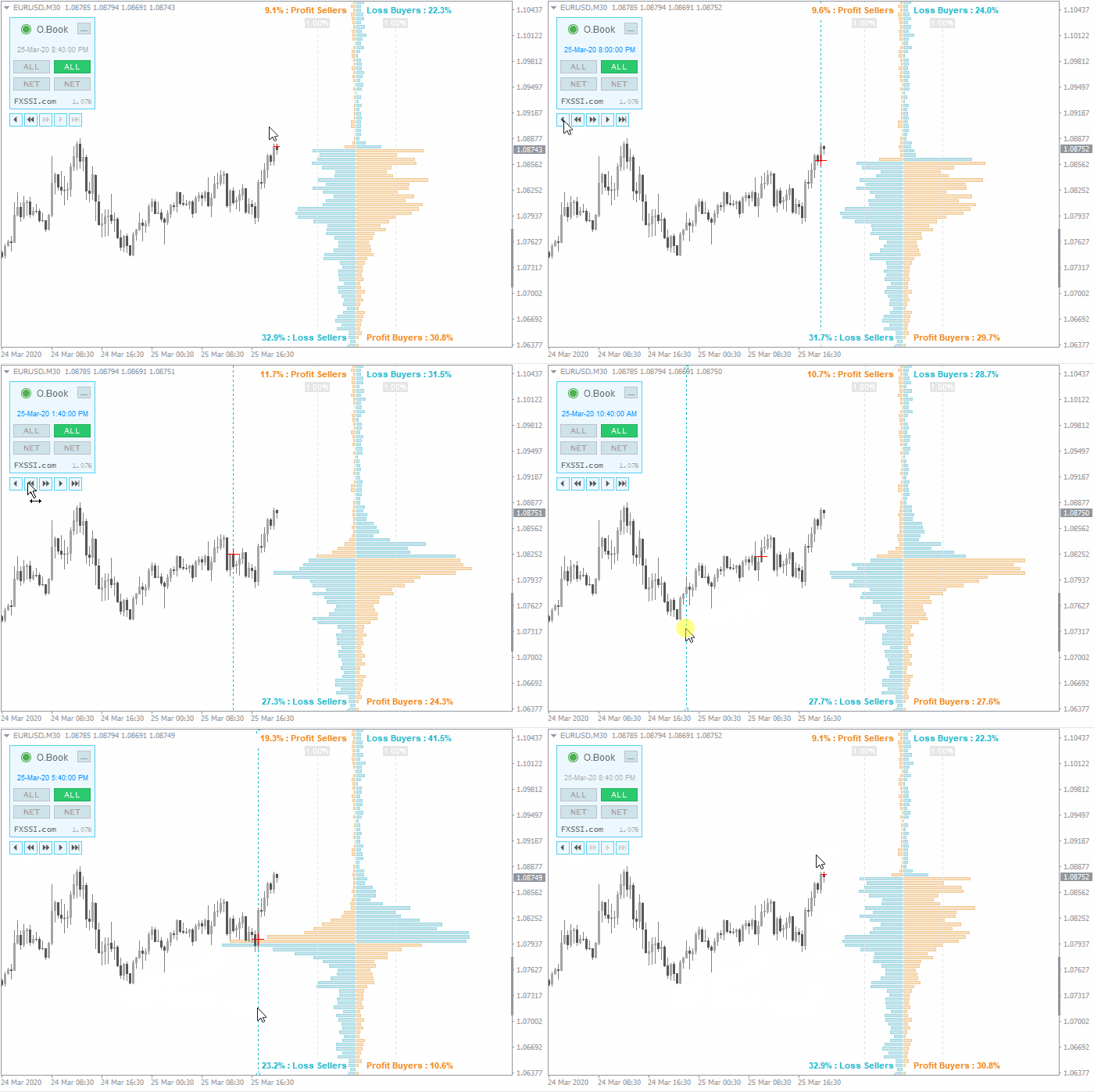
Red cross mark. A cross mark on top of the candlestick chart indicates the price and time at which the Order Book snapshot was made. It is also used to rewind the history of snapshots.
Fast access to data. Switch between modes using the buttons on the indicator panel. You don’t have to go to the indicator settings to change the type of the displayed data.
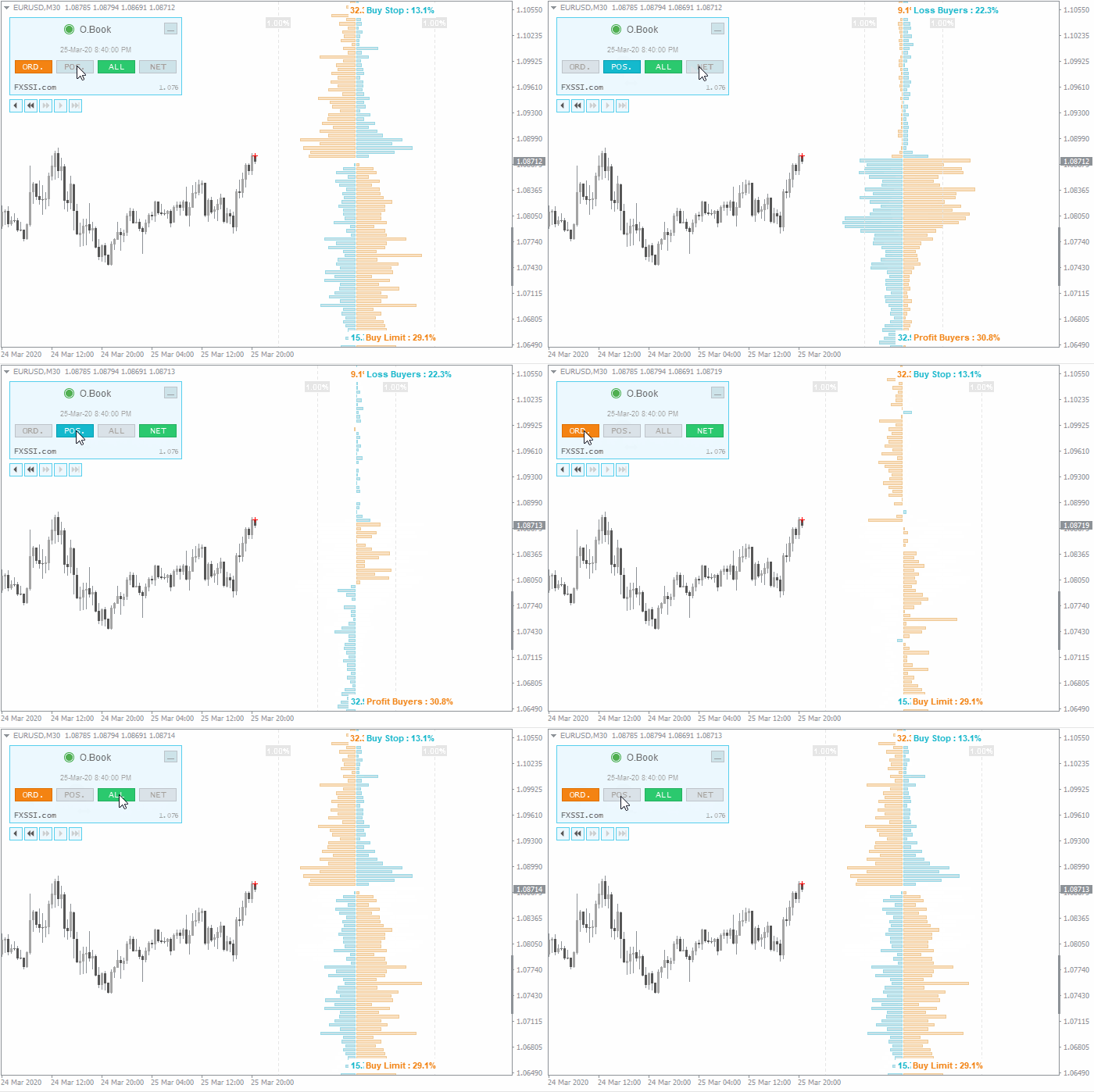
The menu has the button to minimize the panel as well. You can set the minimized state of the panel as default in the indicator settings. It reduces the menu size in such a way as not to prevent you from making a candlestick analysis.
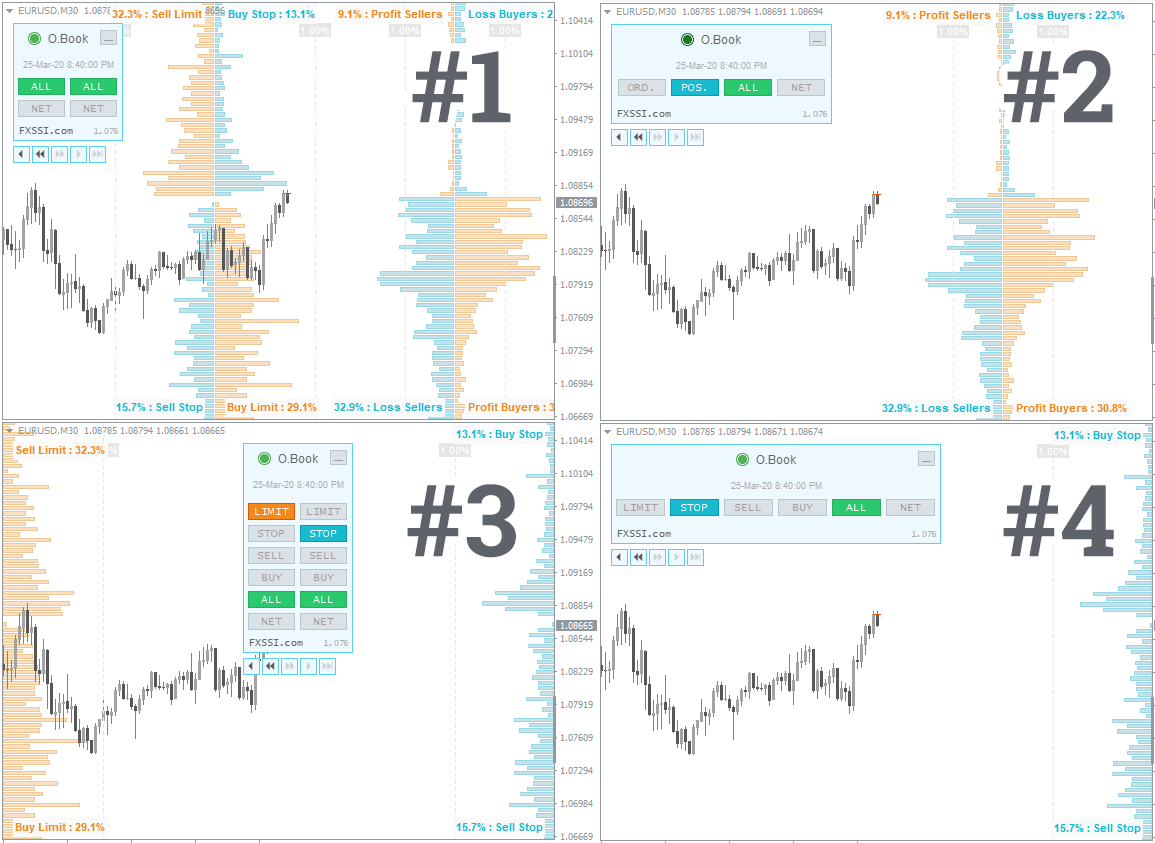
Four layouts. Simplified/classic, one-sided/two-sided. For more information, see the image below:
Auto settings. The indicator has a feature for the automatic detection of color scheme and time zone.
For your convenience, we have added the Automatic Indicators Update system. Now you only need to restart your terminal to get the latest versions. The indicator will inform you about it in a separate window.
Indicator Settings
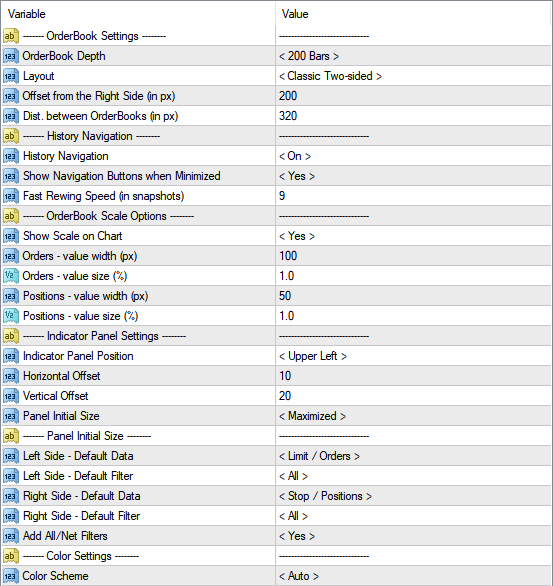
OrderBook Settings Block
OrderBook Depth. It sets the number of horizontal columns of the histogram. The higher the value, the larger the height of the order book.
Layout. There are four layout options available:
Offset from the Right Side, Dist. between OrderBooks. Both parameters set the location of the histograms on the chart.
History Navigation Block
History Navigation. Enables/disables navigation through cast history.
Show Navigation Buttons when Minimized. Determines whether the rewinding panel will be displayed when the main one is minimized.
Fast Rewind Speed (in snapshots). Sets the step for fast rewinding. You can enter the value at your discretion. It is measured in bars.
OrderBook Scale Options
Show Scale on Chart. Enables/disables the vertical bar-scale of the histogram.
Orders/Positions – value width/value size. They determine how far the vertical scale lines will be drawn from the middle of the order book.
Indicator Panel Settings
Indicator Panel Settings:
Data to show by Default
Left Side/Right Side – Default Data. Sets the default data type for the simplified display.
Left Side/Right Side – Default Filter. Shows all data or the net default value.
Add All/Net Filters. Enable/Disable the net value mode.
Color Settings
Color Scheme. By default, the indicator will automatically detect the color scheme depending on the chart background. If necessary, select the desired color scheme from the list.
Related Products
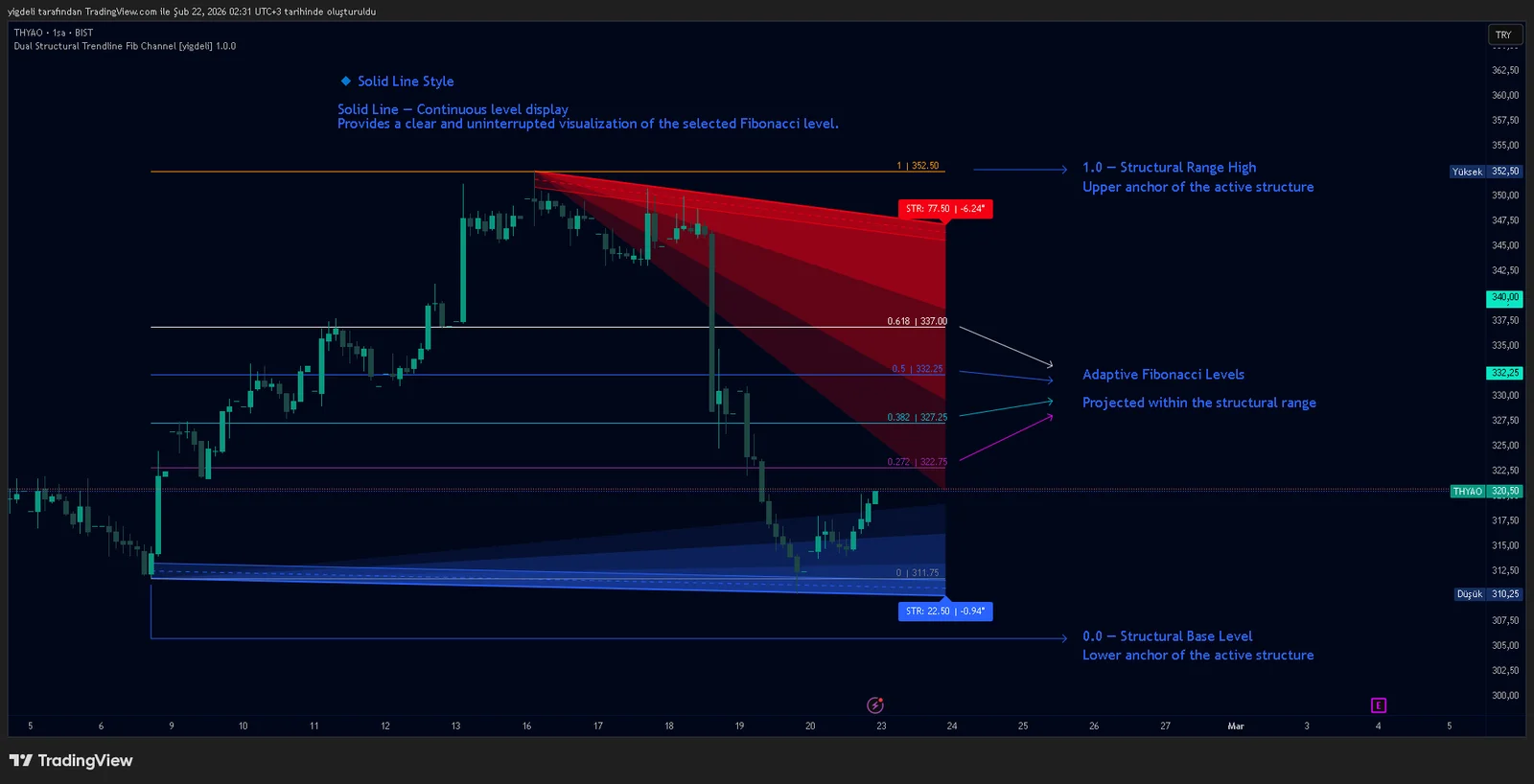
Dual Structural Trendline Fib Channel Free Download
Dual Structural Trendline Fib Channel is a structural analysis indicator that automatically constructs dual trendline channels using pivot-based slope logic.
![Wedge Pattern [InfinityAlgo] Free Download](https://infinityalgoacademy.net/wp-content/uploads/2026/02/Wedge-Pattern-UAlgo-—-Indicator-by-UAlgo-—-TradingView-22-02-2026_21_34-scaled.png)
Wedge Pattern [InfinityAlgo] Free Download
Wedge Pattern is a chart overlay that detects rising and falling wedge formations using strict pivot based rules and a validation engine that enforces classic technical analysis requirements. The script builds two trendlines from confirmed pivot highs and pivot lows

Volatility Aggregation Model Tradingview
Volatility Aggregation Model (VAM) is a very simple overlay indicator that classifies market direction using a five-speed ensemble of volatility-adaptive range engines. Instead of relying on a single trend filter, VAM evaluates direction across multiple responsiveness settings and converts those states into a normalized score
Quantum Emperor MT4 Free Download
Introducing Quantum Emperor EA, the groundbreaking MQL5 expert advisor that's transforming the way you trade the prestigious GBPUSD pair! Developed by a team of experienced traders with trading experience of over 13 years.

CyNera MT4 Free Download
Trading gold, one of the most volatile instruments in the market, demands precision, in-depth analysis, and strong risk management. CyNera Expert Advisor seamlessly integrates these elements into a sophisticated system designed for optimal gold trading.